Card file
The file system is the heart of alfons.
It contains all the people you work with in the modules.
General Information
When creating entries in the file, it doesn't matter whether they are customers, patients, or private contacts. Each record initially represents a person. To ensure that each record can always be uniquely identified, it has its own "ID," a kind of customer number. You will always find the ID in the first field of the blue information bar in all modules, recognizable by the small pictogram of a person.
The First File Entry
If this is your first contact with Alfons, let's create a new person as an exercise:
-
To do this, please click on the first icon, +, in the gray function bar. You will now see an empty "file card." (Actually, that's not entirely accurate. The ID number mentioned above, the profile, and two entries in the "Info" tab have already been populated. The ID cannot be changed, but you can, for example, select a different one Profile. This depends on whether you want to assign the new record entry to customers, friends, or another group.)
-
Now you can fill in all the remaining fields, such as last name, first name, company, etc. Text fields with a yellow line on the left offer drop-down menus. For example, the Label drop-down menu.
-
Using the small + in the yellow circle, you can add any number of additional fields for extensions, email addresses, and other information.
Additional Information
To keep the record clear, additional information is located in the respective tabs on the right-hand side:
Modules tab
The file information at the top is not editable; it indicates who created or modified the index card and when. The field below provides space for free notes or keywords.
-
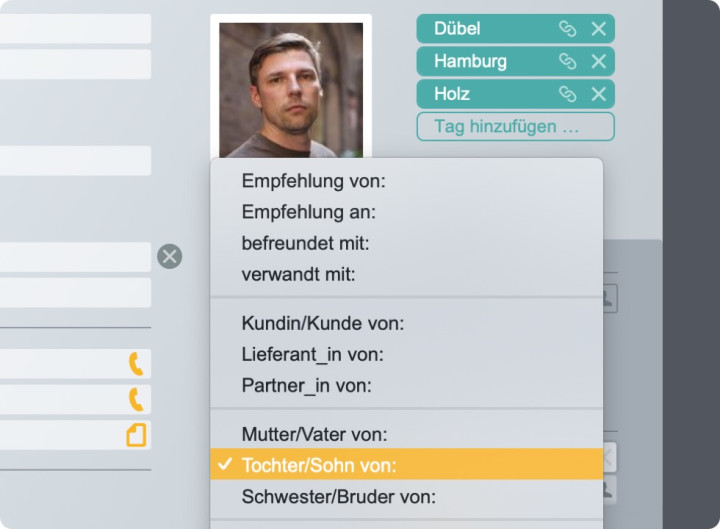
The network includes several intelligent tools for mapping connections between people in your records: Who knows whom? Who is related to whom? Who works in the same organization? How did you originally establish contact, etc.? The top selection, "More entries under…", works automatically and lists all records managed under the same organization. For example, other employees of the Kleinschmidt company. You can customize the lower selection. Here, you create links to other people in the records and specify the type of connection.
-
To create a new link, click the small, yellow + on the right. The list will then be expanded with an empty entry. In the top field, select the type of link. For example, is the link a friend of the person, a customer, or perhaps married to them? You can also freely edit the contents of this menu using the last item, "Edit". Alternatively, you can ignore the selection field and simply type a note in the text field.
-
In the second, lower field, select another person from the records to link. So, the person you want to link to the current record. Done. Once you're finished, you can click the small right arrow next to the links to easily access them. To remove a link later, click the trash can icon.
Extras Tab
Here you will find optional settings for user rights, bank details, and distribution lists. "Access" regulates user access to alfons. If you only intend to work with alfons on your own, you can skip this section. This option becomes relevant if you want to share alfons with other users or work on a network. In this case, you can define what the three permission groups—Authors, Group, and Everyone—are allowed to do with a record entry.
The first row of checkboxes grants read access, the second row grants write access. So, if the first checkbox for "Group" is activated and the second is not, users in "Group" may view the current card, but not edit or delete it. This allows you to create a simple and effective permissions scenario. However, some important preparations are necessary. First, compile a list of the desired users, consider a sensible division into the three permission groups: Author, Group, and Everyone, and then create the users in the preferences. After creating the appropriate user accounts, they can log in to alfons with their individual credentials and work with the data according to their assigned permissions. Important: The permissions of a card are inherited by the other modules. Therefore, if users in the "Everyone" group are not allowed to read a card, they will also not be able to read any messages, notes, invoices, etc., associated with that card.
Distribution List
This is a simple way to assign index cards to specific recipient groups. Examples include catalog mailings or birthday greetings. The names of the three distribution lists can be changed as needed. Please note, however, that these changes apply globally to all index cards, not just the currently open one!